Cursor movement from the Arduino is always relative. Every time an input is read, the cursor's position is updated relative to it's current position.
Whenever one of the directional buttons is pressed, the Arduino will move the mouse, mapping a HIGH input to a range of 5 in the appropriate direction.
The fifth button is for controlling a left click from a mouse. When pressed, the board sends a press to the computer. When the button is released, the computer will recognize the event.
NB: When you use the Mouse.move() command, the Arduino takes over your computer's cursor! To insure you don't lose control of your computer while running a sketch with this function, make sure to set up a controller before you call Mouse.move(). This sketch only updates the cursor position when a button is pressed.
Step 1: What You Need?
1 x Arduino Leonardo, Mirco, or Due Board
Male-to-Male Jumper Wires (MM)
Don't have components? Don't worry. Just click the component's name.
Step 2: Build Your Circuit.
Connect your board to your computer with a micro-USB cable. The buttons are connected to digital inputs from 2 to 6. Make sure you use 10k ohm pulldown resistors.
Step 3: Upload The Code.
1. Select the Arduino board type: Select Tools >> Board >> Select your correct Arduino board used.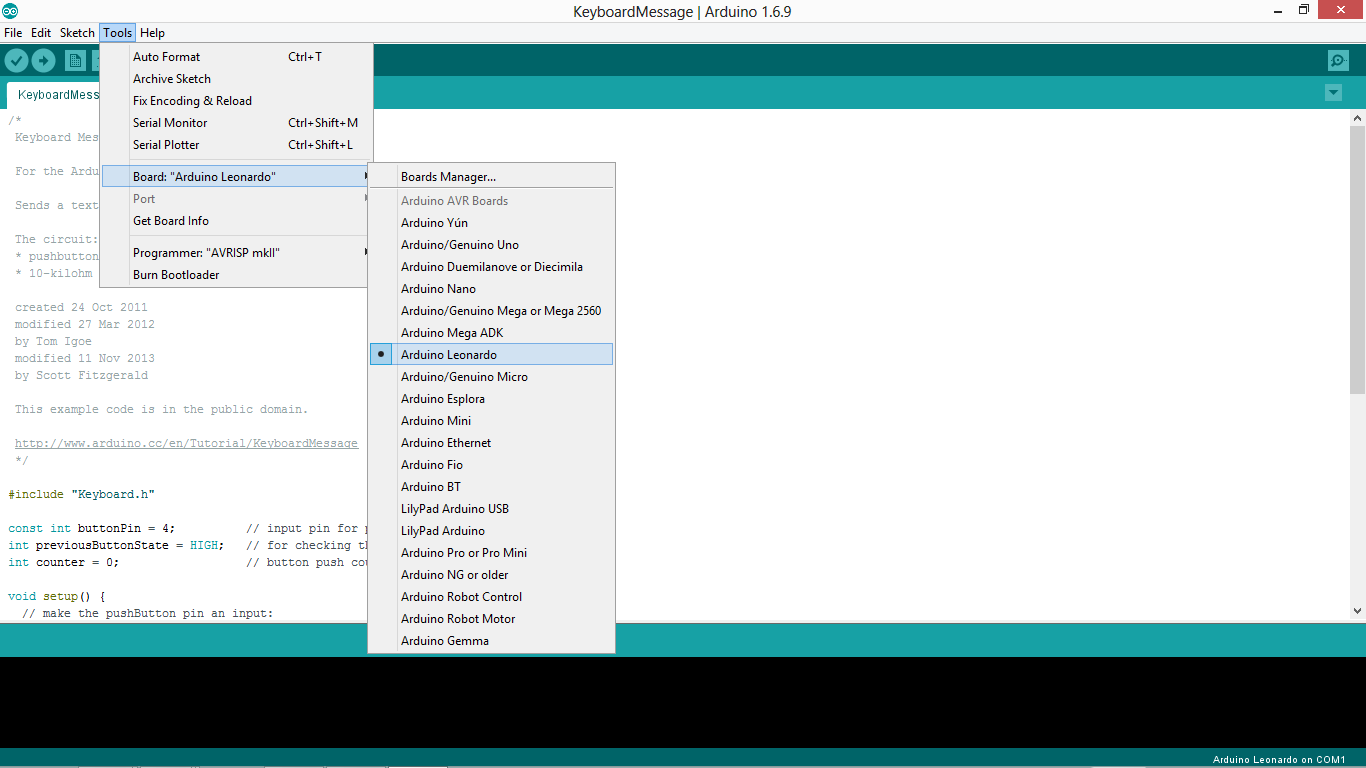
2. Find the port number by accessing device manager on Windows. See the section Port (COM&LPT) and look for an open port named "Arduino Leonardo (COMxx)". If you are using a different board, you will find a name accordingly. What matters is the xx in COMxx part. In my case, it's COM3. So my port number is 3.
Select the right port: Tools >> Port >> Select the port number.

3. You can find this code in the example of Arduino IDE.
Select File >> Examples >> 09.USB >> Mouse >> ButtonMouseControl
Click press the "upload" button (see the button with right arrow mark).
Click press the "upload" button (see the button with right arrow mark).
Download:
09.USB
ButtonMouseControl
library
mouse


